
When “Working” Isn’t Really Working: My First Lesson in Debugging
By the time I reached Chapter Four of LinkedIn Learning’s OpenAI Codex 101: From Idea to Deployed App, I had started feeling reasonably confident.
The application was online.
Users could add links.
Rich previews worked for many websites.
Everything seemed to be functioning as expected.
Then the course introduced a simple test.
What happens when somebody enters a website that doesn’t exist?
The Problem With Silent Failures
At first glance, my application appeared to handle bad links perfectly well.
I entered a fake website address and the application happily accepted it.
No crash.
No warning.
No obvious error.
The link was added to the page just like any other.
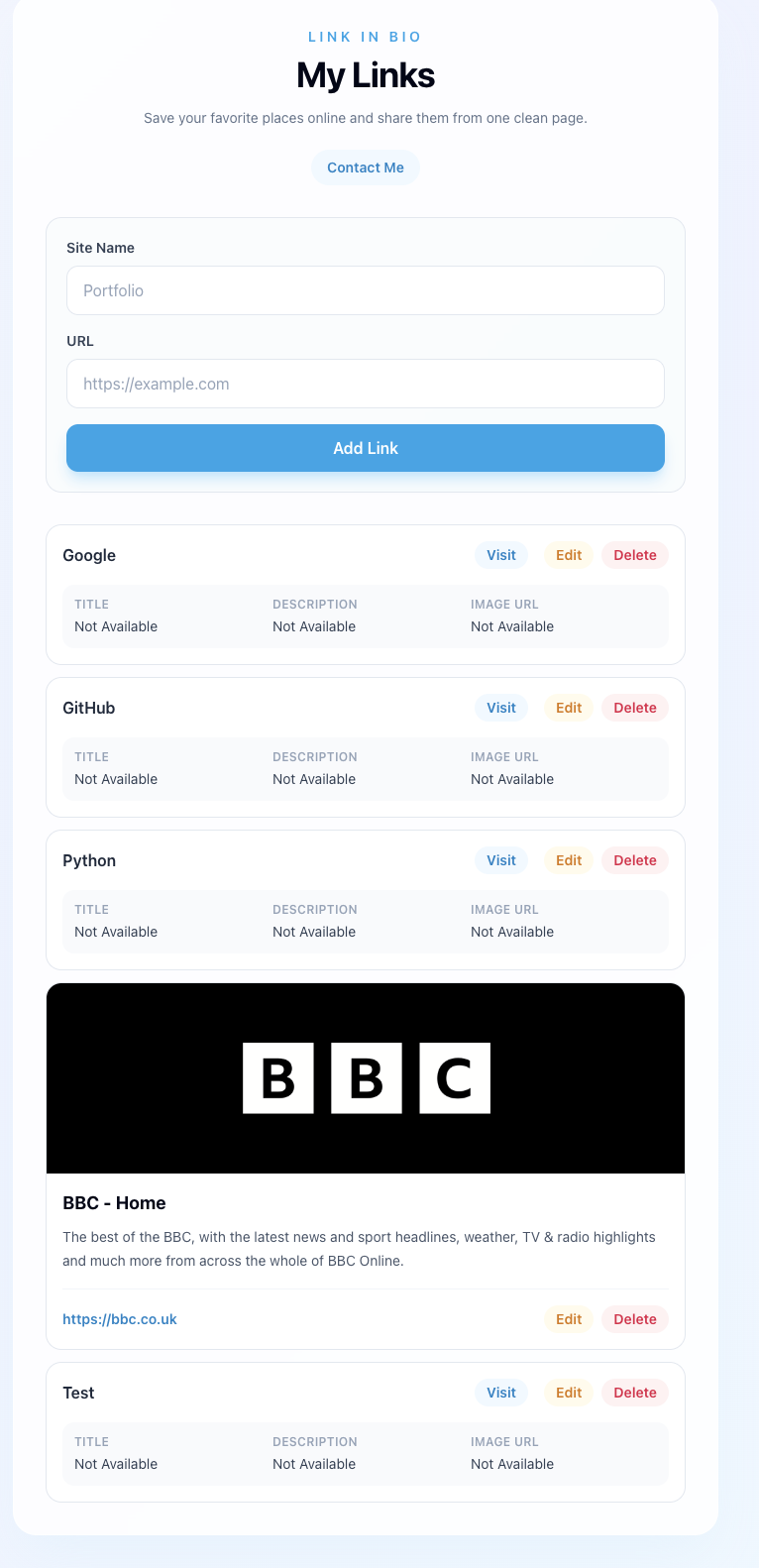
The application accepts a fake URL without any visible indication that something is wrong.
At first this looked like a success.
The application hadn’t broken.
But the more I thought about it, the more I realised this was actually a problem.
The application wasn’t handling the error.
It was hiding it.
Looking Behind The Curtain
The lesson then shifted focus away from the user interface and towards something I’d barely considered before: server logs.
Until now I’d mostly been looking at what happened in the browser.
The logs tell a different story.
Once logging was added and the application redeployed, I repeated the same test.
This time the application started recording what was happening behind the scenes.
When I checked the logs, the difference was obvious.
For the first time I could see that the application wasn’t magically handling the bad URL.
It was failing.

The application accepts a fake URL without any visible indication that something is wrong.
The difference was that the failure was now visible.
That felt like an important lesson.
As a user, I care about whether something works.
As somebody building software, I also need to know why something doesn’t work.
Making Problems Visible To Users
Of course, fixing the logs only solves half the problem.
Users don’t read server logs.
They only see what appears on the screen.
The next task focused on improving the user experience when metadata couldn’t be retrieved.
Rather than treating failed previews exactly the same as successful ones, the application was updated to make the difference clearer.
This was a subtle change, but an important one.
Instead of pretending everything was fine, the application now communicates that something unexpected happened.
A Better User Experience
The final result feels much more professional.
Links that successfully generate previews still stand out.
Links that fail are still saved, but they’re clearly marked.
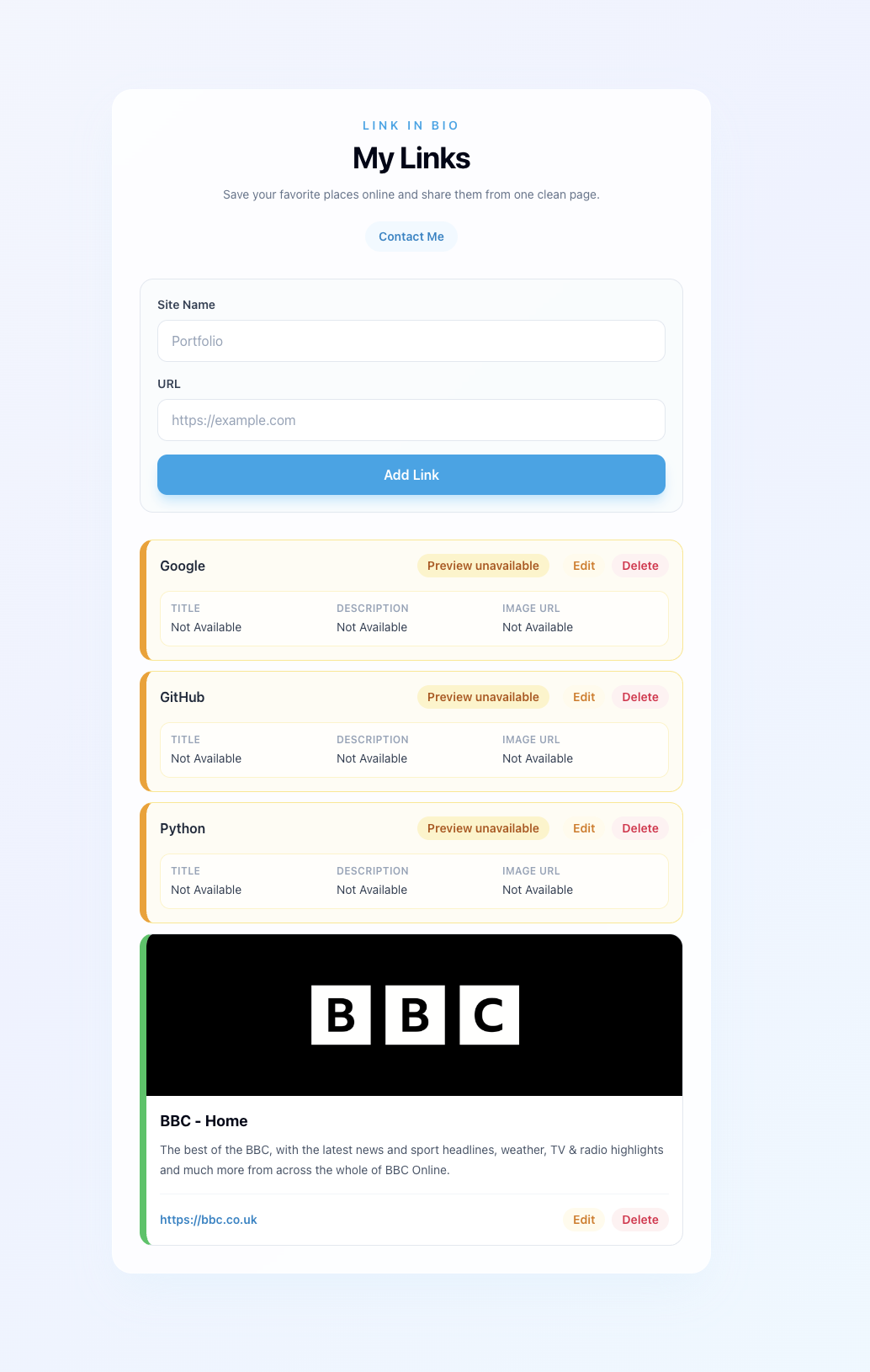
Successful previews and failed previews are now clearly differentiated.
This is one of those improvements that users may barely notice consciously, but it makes the application easier to understand and trust.
What I Learned
The biggest lesson from this section wasn’t about logging.
It was about visibility.
Before this exercise I assumed that if an application didn’t crash, it was probably working.
Now I understand that’s not necessarily true.
Sometimes software fails quietly.
Sometimes the error is hidden.
Sometimes the system knows exactly what’s wrong but nobody sees the message.
Good software doesn’t just work when things go right.
It helps users and developers understand when things go wrong.
This exercise introduced me to that idea for the first time.
And judging by the next section of the course, I’m only beginning to scratch the surface of what happens behind the scenes when software meets the real world.
My App Is Finally Watching Itself: Learning About Monitoring
The final part of Chapter Four of LinkedIn Learning’s OpenAI Codex 101: From Idea to Deployed App focused on something I hadn’t really thought about before.
Up until now, I’d been concentrating on getting the application to work.
If something broke, I could open the website, test it myself and investigate.
But what happens when you’re not looking?
What happens if the application stops working overnight?
What happens if a deployment fails while you’re away from your computer?
Those are the kinds of questions this section explored.
Building On The Previous Lesson
The first half of Chapter Four introduced me to logging.
For the first time, I could see what was happening behind the scenes when something went wrong.
That was useful.
But logs only help if you’re actively looking at them.
If nobody is checking the logs, problems can still go unnoticed.
Monitoring solves a different problem.
Instead of helping you investigate an issue after it happens, monitoring helps you discover that something is wrong in the first place.
Giving The App A Pulse
One of the first concepts introduced in this section was the idea of a health check.
The simplest way I can describe it is as a pulse check for the application.
Rather than opening the website and clicking around, a monitoring service can ask a simple question:
“Are you alive?”
If the application responds correctly, everything is fine.
If it doesn’t, that’s a warning sign that something may need attention.
What struck me was how simple the idea was.
You don’t need to test every feature continuously.
You just need a reliable way of confirming that the application is still running.
Looking Beyond The Website
Another useful lesson was discovering that there is more information available than I’d realised.
Until now I’d mostly focused on the application itself.
This section highlighted the wider ecosystem around it.
There are tools that can show:
- Deployment history.
- Resource usage.
- Service health.
- Performance information.
As someone new to software development, I found it interesting how much operational information is available once you know where to look.
Automated Monitoring
The final step was setting up a monitoring service to keep an eye on the application.
The idea is straightforward.
Instead of waiting for a user to report a problem, the monitoring service checks the application automatically and can send an alert if something stops responding.
That means problems can potentially be identified before anybody complains.
As somebody with a journalism background, it reminded me a little of setting up alerts for breaking news.
Rather than constantly checking for updates manually, you create a system that tells you when something important has happened.
A Different Way Of Thinking
This lesson marked a subtle shift in how I think about the project.
Earlier chapters focused on building features.
Then I learned about deployment.
Then debugging.
Now the focus has moved towards operations and maintenance.
In other words, what happens after the application goes live.
That’s not something I’d previously associated with software development, but it makes perfect sense.
A working application is only useful if it stays working.
Looking Back At Chapter Four
What I found most interesting about this chapter is that it wasn’t really about adding new functionality.
Users visiting the site probably won’t notice most of the changes.
Instead, the improvements were about reliability.
The application now:
- Provides clearer feedback when things go wrong.
- Records useful information for troubleshooting.
- Makes failures more visible.
- Includes monitoring that can alert me to potential problems.
None of those changes are particularly glamorous.
But they’re the sort of improvements that help turn a project from a simple demonstration into something that feels more robust.
What I Learned
The biggest lesson from Chapter Four was that software isn’t finished once it works.
You also need to think about:
- How you’ll diagnose problems.
- How you’ll know something has failed.
- How quickly you can respond when it does.
Before starting this course, I assumed building an application was mainly about creating features.
I’m beginning to realise there’s an entire layer of work that happens after the feature is built.
Monitoring, logging and troubleshooting may not be the most exciting parts of development, but they are clearly important ones.
With Chapter Four now complete, the application isn’t just running.
It’s watching itself.
Final Thoughts
I took this course to find out how easy it would be to use Codex to build a simple web application using plain English rather than traditional programming.
In many ways, it really is that simple. Describing what I wanted in everyday language and watching Codex generate code felt remarkably intuitive.
What surprised me most, however, was everything that happened after the code was generated.
Throughout the course I discovered that AI-assisted development isn’t just about writing prompts. It’s about reviewing results, testing changes, troubleshooting problems and sometimes figuring out why the output isn’t quite what you expected. Several times I followed the instructor’s prompts exactly, only to find that my results differed from those shown in the training. In some cases the solution was straightforward. In others, it took investigation, experimentation and a fair amount of persistence (using AI as I can’t code).
My biggest takeaway is that AI can dramatically lower the barrier to building software, but it doesn’t remove the need for human judgement. You still need to understand what you’re trying to achieve, recognise when something isn’t working and ask the right questions when things go wrong.
So, do developers need to worry?
Not yet.
What AI has done is make software development far more accessible to people like me, who don’t come from a coding background. But throughout this course I’ve repeatedly found that getting something built is only part of the challenge. Understanding, testing and maintaining it remains just as important.
If anything, this course has left me with a greater appreciation for the skills of experienced developers—and a lot more confidence that non-programmers can build useful things too.
By the way – here is the end result (it may take a while to load.